
Click Apply on CaFÉ to begin your application.
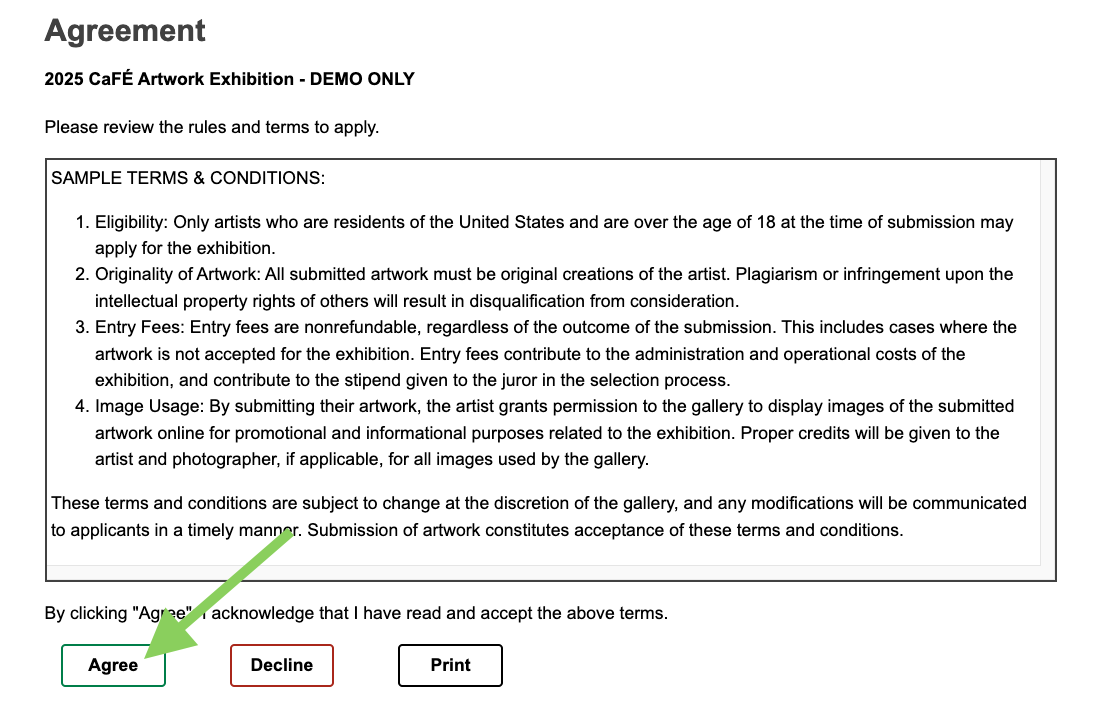
🖋️ Agree to the organization's rules and terms to apply.
You can print or save the agreement from this page. Once you agree to the terms, you will see the application.
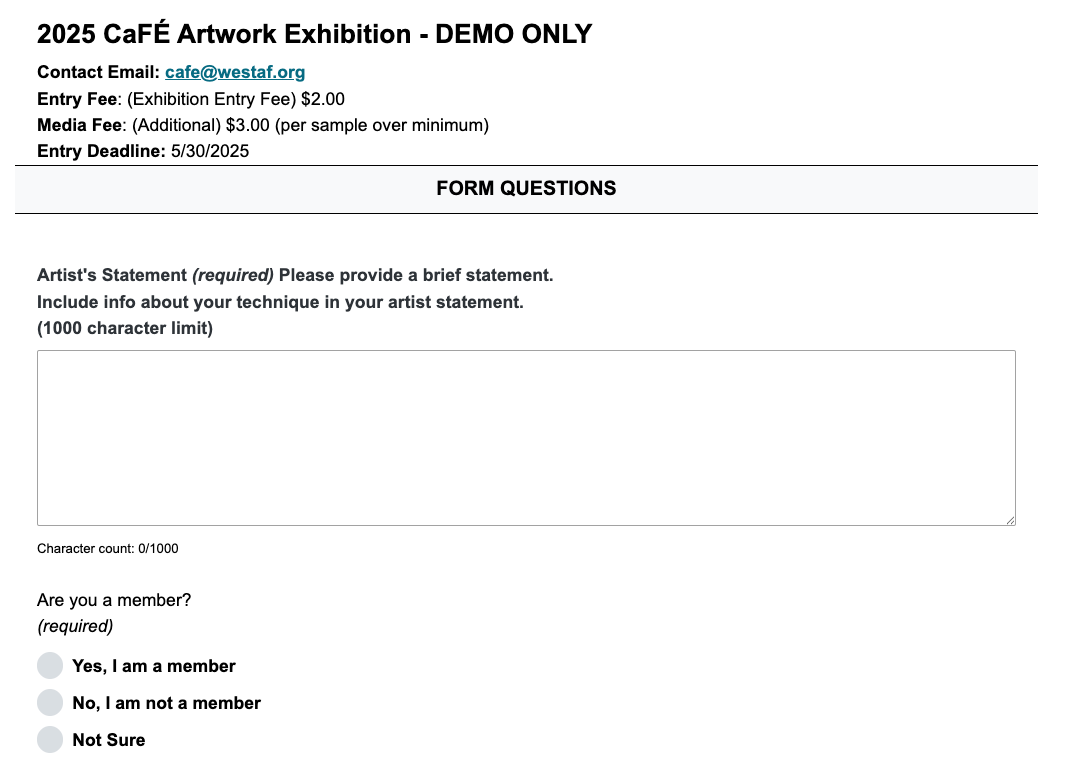
Complete the ✍️ Form Questions.
Questions labeled "(required)" must be answered before you can submit your application. If present, click on the blue ?question mark icon for additional information about how to answer the question.
⚡ TIP: Your application will auto-save every 30 seconds if changes have been made. You can also click Save to save your changes manually.
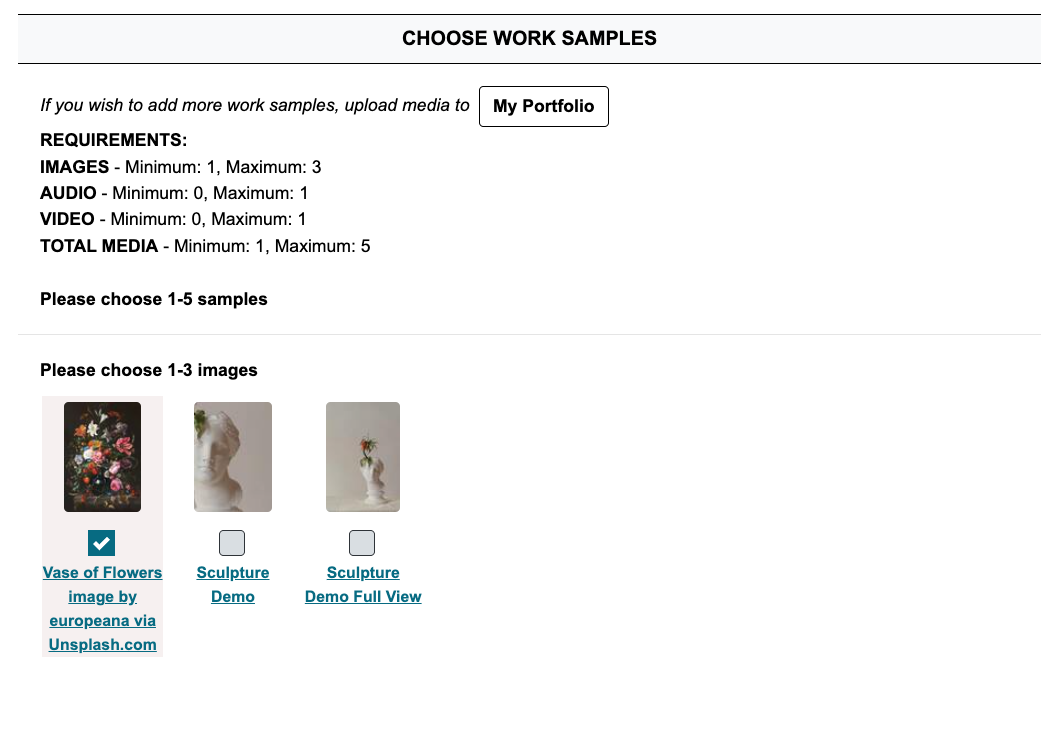
4. Choose 🖼️ Work Samples.
Select the image, audio, and video file(s) you want to attach to your application. Click the thumbnail or the checkbox to attach it. Click the thumbnail again to unattach it. Go to 💼 My Portfolio to upload additional work samples.
Click the 💾 Save and Continue Application button to proceed to the next stage.
Application Error? Items in red indicate something is required and has not been answered. Complete all required questions.
If applicable, select a category for each work sample and click Save Categories.
The sponsoring organization sets up categories. In some cases, you will choose one category for your entire application. In other cases, you will choose one category for each work sample.
At this point, you will have the option to Checkout, go Back to Entry to make changes, or View a Preview of your application answers to double-check that everything is ready to submit.
⚡ TIP: You cannot make changes to your application after it is submitted. Review it carefully before you continue.
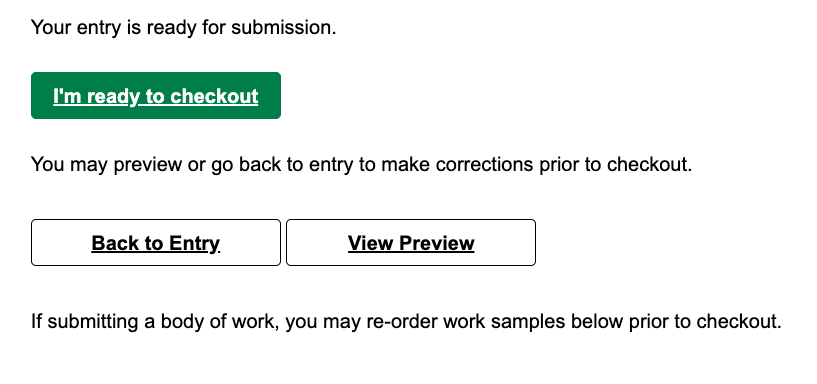
✨ Ready to Submit? Click I'm ready to checkout to continue.
