Contact & Profile Information 🔒
Update your contact information when you move, get a new website, or change your phone number. Organizations see the contact information listed in this section when viewing your application and use it to contact you, create artwork labels, and update their websites.
On the CaFÉ profile page, you can update the following:
Username
Business/Studio Name
Physical Address
Phone Number
Profile Type (Individual or Team)
Team Member Names
Core Artistic Disciplines
CaFÉ System Notification Opt-ins
Saved Payment Details
To update your name, email, and password, visit the My Creative West Account page in the Creative West Opportunities Portal. These changes will be applied across any CaFÉ profiles connected to your Creative West account.
Individual vs. Team Profiles 🧑🤝🧑
If you begin working with another individual or group to create your work, choose the Team option and add their names so organizations know who helps in your creative process.
Artistic Discipline 🎨
If you change disciplines or stop working in one, you can update your selections in this section. This is not displayed to organizations but can be used to tailor specific emails to you.
Notification Settings 🔔
Change your email preferences in this section. If you no longer wish to receive notifications of calls for entry and other general CaFÉ emails, you may opt out of the CaFÉ email lists. Keep in mind that you cannot opt out of some emails, such as receipts and emails coming directly from organizations.
How to Opt Out of CaFÉ Emails
After logging in, click 🔒 My Profile.
Go to the Notification Settings section.
Deselect the ☑️ checkboxes for the notifications you do not want to receive.
Click Update My Profile to save changes before leaving the page.
Opting in or out of CaFÉ emails will not impact emails you may be subscribed to through your Creative West account. Go to Email Settings in your Creative West account to update your email preferences.
Saved Payments 💳
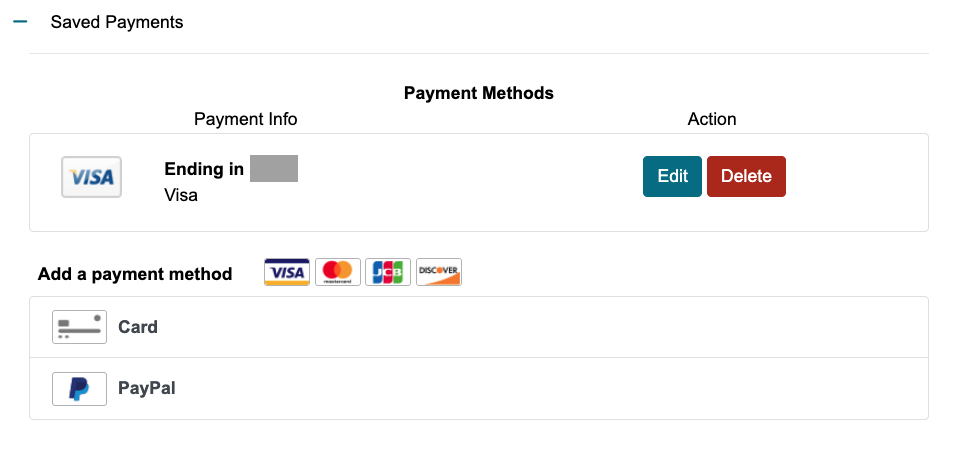
You can add, edit, or delete payment methods you saved in CaFÉ in this section.
Click Edit to modify the payment method details, such as updating your expiration date.
Click 🗑️ Delete to remove the payment method.
Click Add a payment method to save a new payment method.
You will receive an email confirmation for any updates to your saved payments.
What Your CaFÉ Profile Page Does Not Handle
You cannot update your name, email address, or password from the CaFÉ Profile page. You also cannot unsubscribe from emails related to the Creative West Opportunities Portal in this section. Visit your My Creative West Account page in the Creative West Opportunities Portal to make changes to any of those details.
