

Prefer a video tour? Watch the Managing Applications video.
Viewing Applications
Applications are sorted into two main categories: active applications and archived applications. To switch which application category you’re viewing, click on either Active or Archived.
Applications that you have started or are ready for submission are highlighted in red and listed at the top of the table.
Click 👀 Review to view a submitted application.
Click ✏️ Finish Draft to continue working on an application.
If your application is ready, click 💳 Checkout to submit the entry before the deadline.
Click on the Call Name to view the details of the call.
Click 🧾 View Receipt under the "Transaction Details" column to view the receipt for an entry fee payment.
Click 🗃️ Archive to move your application to the archived category.
⚡️TIP: The option to archive an application will appear when the organization has completed the jury process. Learn more about archiving applications.
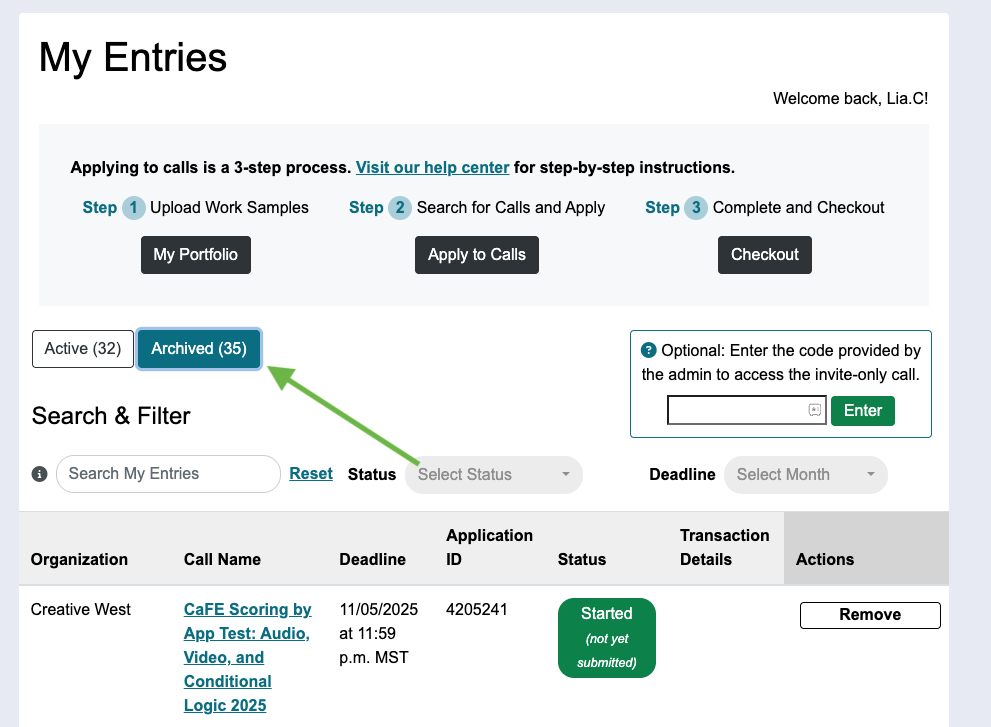
Searching, Filtering, and Sorting Applications
Click the arrow to the left of each option to see the definition.
Search My Entries
Use the search bar to find an application. You can search by key words in the call name or organization, or search by application ID.
Filter by Status
Click the drop-down to filter your applications by Status. Learn more about application statuses.
Filter by Deadline
Click the drop-down to filter your applications by the month of the deadline.
Sort Applications
Click on the Organization or Call Name column to sort applications alphabetically (A-Z), and click again to sort alphabetically (Z-A).
Click on the Deadline column to sort application deadlines soonest to latest, and click again to sort latest to soonest.
Click on the Application ID column to sort applications by ID number in ascending order, and click again to sort by ID number in descending order.
Click on the Status column to sort applications by status alphabetically (A-Z), and click again to sort alphabetically (Z-A).
