Adding Media
Ready to add images, audio, and videos to your portfolio? Find instructions below:
Viewing Work Samples 👀
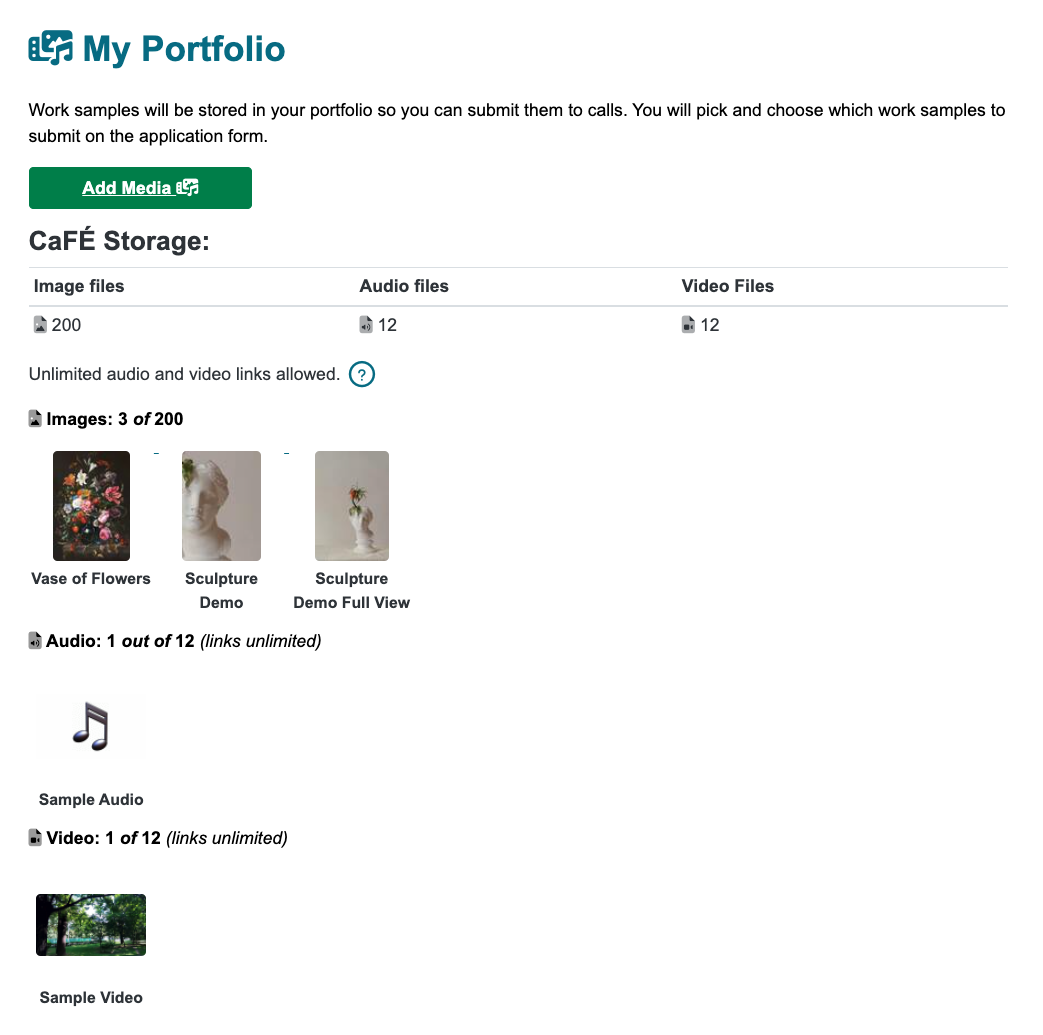
After logging in, go to 💼 My Portfolio. You will see all of your uploaded image, audio, and video files.
You can keep up to 200 image files, 12 audio files, and 12 video files. You can also have an unlimited number of audio or video links.
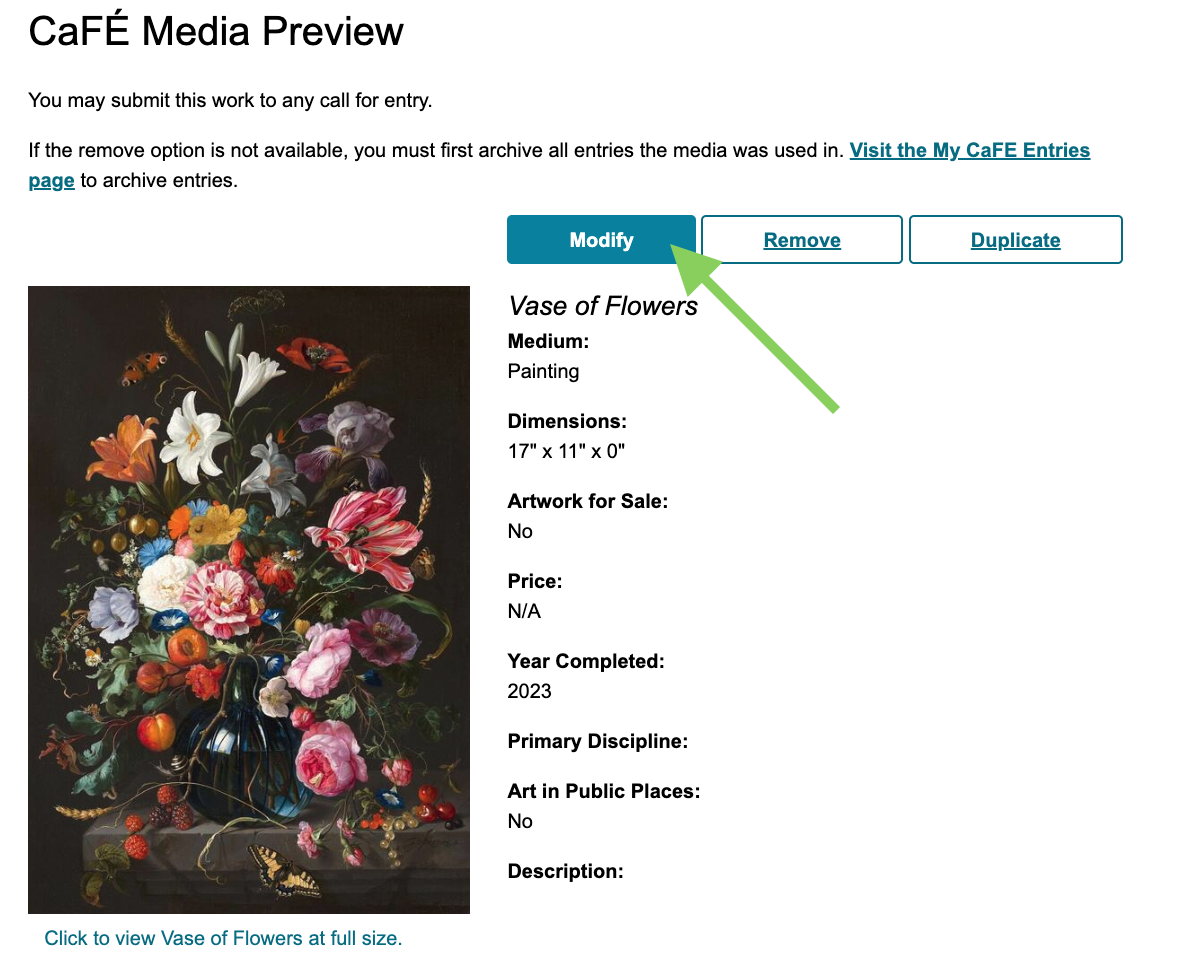
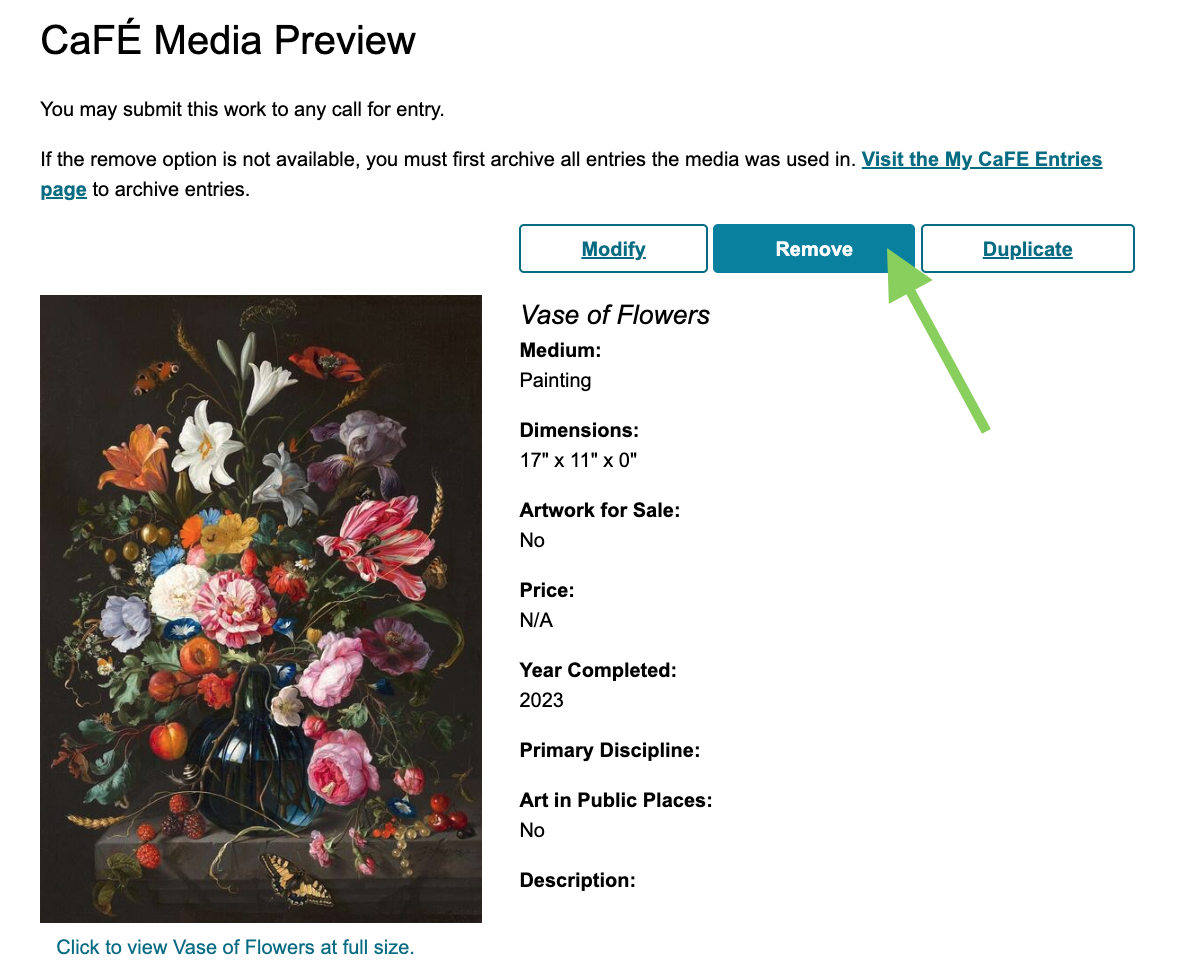
Click on a work sample to video the Media Preview page. From here, you can modify, remove, or duplicate it.
Click the option below the work sample to view it at full size.
Under Applications Artwork is Used In, you will see a list of applications that contain the work sample.
Modifying Artwork Details ✏️
How to modify details for Started, Ready for Submission, and future applications:
After logging in, go to 💼 My Portfolio.
Click on the work sample you wish to edit, then click Modify.
Edit the artwork details you want to change.
Click Save Media Changes.
You may be asked if you’d like to update the artwork details for applications that are Started or Ready for Submission.
Click Yes to update the work sample for those applications.
Click No to use the updated work sample for future applications only.
How to modify details for a previously submitted application:
You cannot edit submitted applications, so you first need to contact the organization of the call you applied to and ask that they change your application status to Incomplete.
In the meantime, follow the steps above to modify your artwork details and create an updated version of the work sample.
Once your application status has been changed to Incomplete, follow these steps to swap your outdated work sample for the updated one:
Go to 🗂️ My Entries.
Click Modify next to the application.
Click on the original work sample to deselect it. The original work sample will be labeled (outdated).
Click on the work sample labeled (updated).
Once you have swapped the work samples, click Save Application and My Changes Are Complete.
Click Yes, Change Status to Received.
Removing Work Samples 🗑️
To permanently remove a work sample, you first have to archive all applications in which it is currently being used. Follow these steps:
After logging in, go to 🗂️ My Entries.
Find the application(s) with the option to Archive in the Actions column.
Click Archive and select all the applications listed. You must archive all applications that use the work sample you wish to remove.
Go to 💼 My Portfolio.
Click the work sample you wish to remove, then click Remove.
⚡️TIP: Archived entries are accessible anytime in the Archived list on the My Entries page. Learn more about archiving applications.
